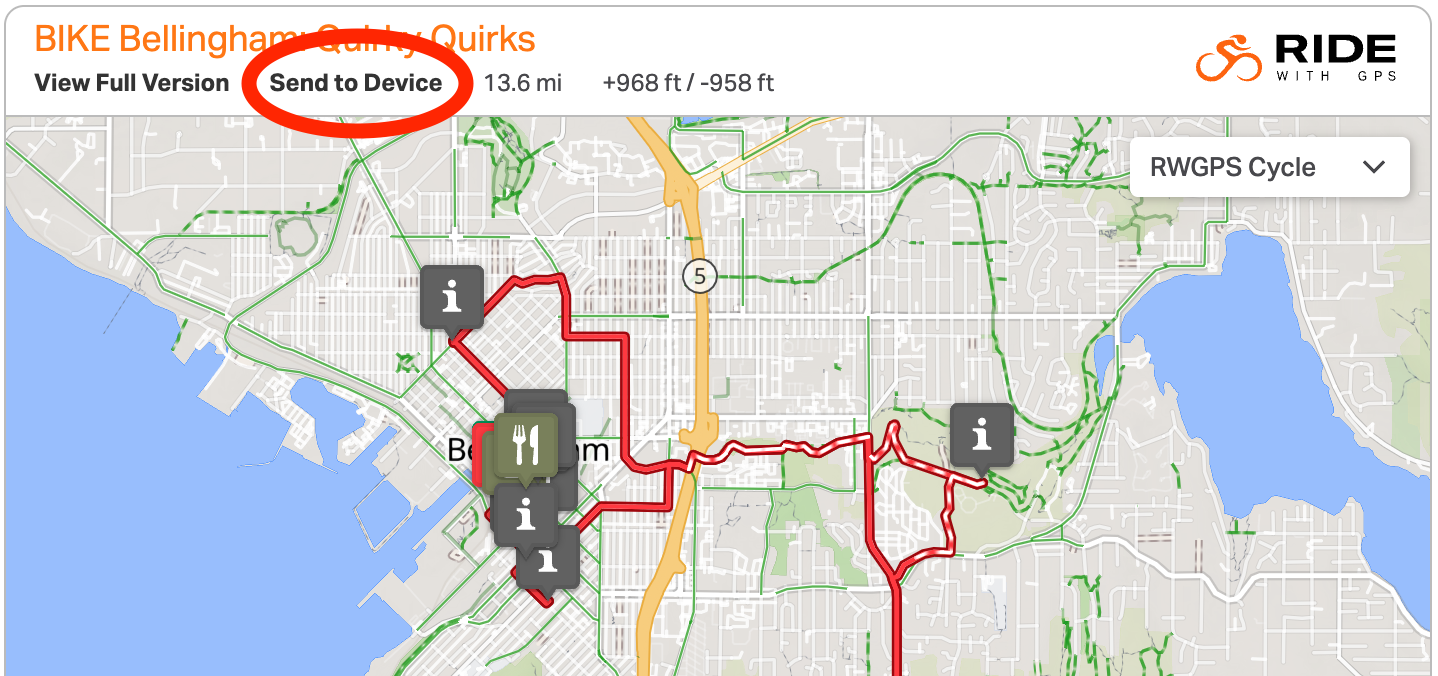
Scroll to the route map in the Ride Guide Overview. Click “Send to Device” immediately above the map.
The experience will be seamless if you are viewing the Ride Guide Overview on your phone where the Ride with GPS app is downloaded.
If you are sending the map from a device other than your phone (such as a computer or a tablet), when you click “Send to Device,” you will be prompted to select the device where you want your map to be sent. Make sure you are logged into your Ride with GPS account on both your sending and receiving devices. If you receive an error message, navigate to www.ridewithgps.com on your computer or tablet, and make sure you are signed into your Ride with GPS account.